Configure the DNS address - APP
Configure the DNS address
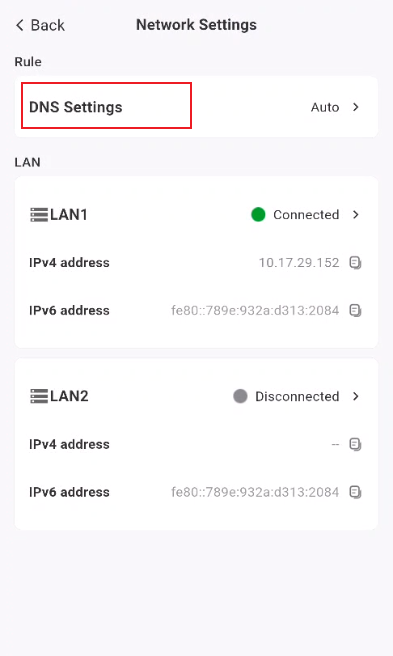
- Go to the DNS settings page: Click [System Settings > Network Settings > DNS Configuration]
- To configure the DNS address, click "Edit":
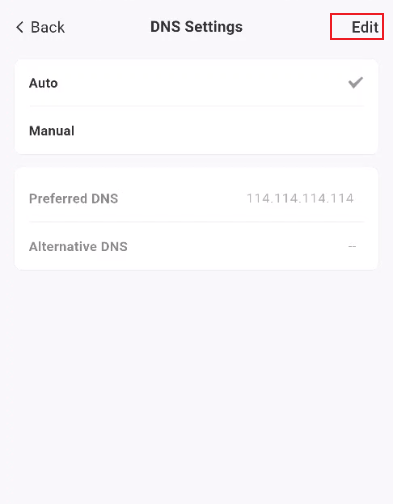
- Manually configure DNS
Select the "Manual" option, then enter the corresponding addresses in the "Preferred DNS" and "Alternate DNS" fields.
Both IPv4 and IPv6 formats are supported. You can enter up to two addresses, one for the preferred DNS and one for the alternate DNS.
- Restore default DNS
Uncheck the "Manual Configuration" checkbox, and the system will automatically use the default DNS addresses (8.8.8.8 and 223.5.5.5).
- App Settings: Tap the "App" button to save the configuration; the DNS address will take effect immediately.
Important Notes
-
Typically, the system uses only the primary DNS server. The device will only forward requests to the secondary DNS server if the primary DNS server is unresponsive (e.g., due to an outage, excessive network latency, or no response).
-
Once DNS addresses are configured, the settings take effect system-wide and affect all network connections.
-
You can configure up to two DNS addresses (primary and secondary).
-
Both IPv4 and IPv6 address formats are supported; please ensure the format is correct when entering them.
-
The default DNS addresses are 8.8.8.8 and 223.5.5.5.